Class Charts for Parents
Frederick Gough School
At Frederick Gough School, we use Class Charts to record student rewards and sanctions. This system provides an up-to-date analysis of pupil behaviour and offers parents swift, timely communication.
This guide explains how to download and navigate the Class Charts app or website to review your child's behaviour daily. If you have any questions, please do not hesitate to contact reyre@frederickgoughschool.co.uk.
What is Class Charts?
Class Charts allows you to keep track of your child's behaviour, access their weekly timetable, and track scheduled detentions. If you have more than one child at the school, you can access all their information from a single parent account.
You can access Class Charts via the official website or by downloading the iOS and Android apps.
Getting Started: Signing Up
You should have received a unique Parent Code from the school. This code is used to set up your account for the first time.
- Go to the Class Charts website or app and select 'Sign Up'.
- Fill in the form, entering your unique code into the 'Access code' field. Please note, this is different from your password.
- Click the 'Sign Up' button.
- You will be prompted to confirm your child's date of birth.
- A confirmation message will appear. Please check your email to verify your address and complete the process.
Key Features
Behaviour Tracking
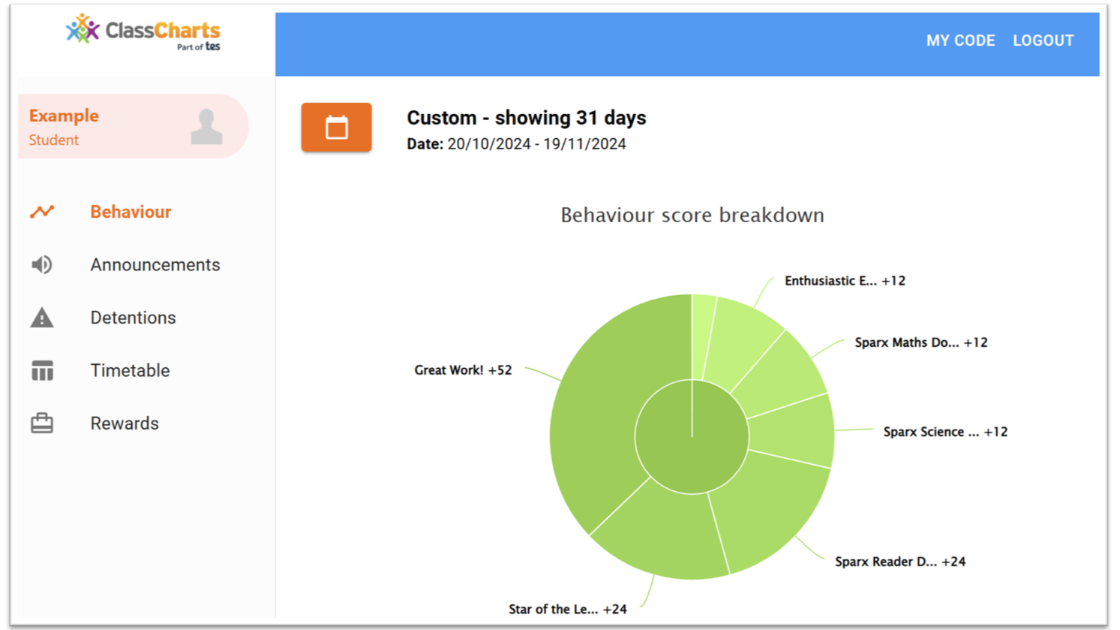
The 'Behaviour' tab provides an overview of your child's achievement and behaviour data. You can view graphs and a detailed list of behaviour activity, including what was awarded, by whom, and in which lesson.
Weekly Timetable
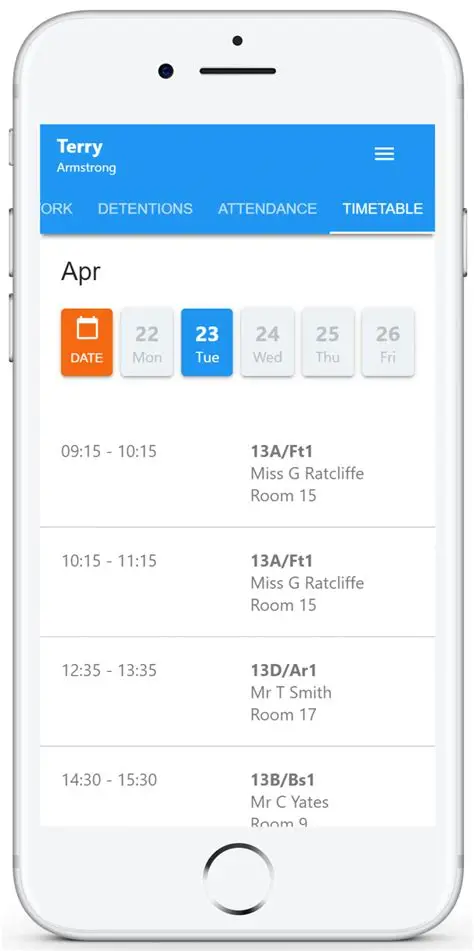
The 'Timetable' tab shows your child's schedule for the day, including lesson times, names, teachers, and room numbers. You can easily navigate to other days or weeks.
On-Report Cards
If your child is placed on report, you can view the details here. This module is currently being developed for full use, so pupils will continue to carry paper report cards for now.
Account Management
- Adding Another Child: Use the 'Add Pupil' button in the menu. You will need the unique access code for your other child.
- Switching Between Children: Simply click on the child's name in the side menu (desktop) or tap the pupil icon (mobile app) to switch between profiles.
- Account Settings: You can change your password or update your name and email address in the 'Settings' menu.
Frequently Asked Questions
I don’t have a parent code.
Please contact the school office to request a new parent code.
I can’t log in.
Please ensure you have completed the sign-up process first. If you have, check your email inbox for a verification message. It's also possible your email address was misspelt during registration.
My password is incorrect.
Please use the “Forgot your password?” link on the login page to reset it.
I would like to know more about your privacy policy.
Class Charts stores your data securely in the UK. Your email is used for login and school notifications only. Your data is never shared with third parties for marketing purposes.